Streaming technology continues to evolve, and devices like the Firestick have become one of the most convenient ways to access digital entertainment. With a simple setup process, users can install IPTV player applications and stream content directly on their television. Because many IPTV players are not listed in the official app store operated by Amazon, the installation process requires a few additional steps.
This detailed guide explains exactly how to install IPTV on Firestick in 2026. By following these steps carefully, you can complete the setup quickly and start using your IPTV service without complications.
Preparing Your Firestick for IPTV Installation
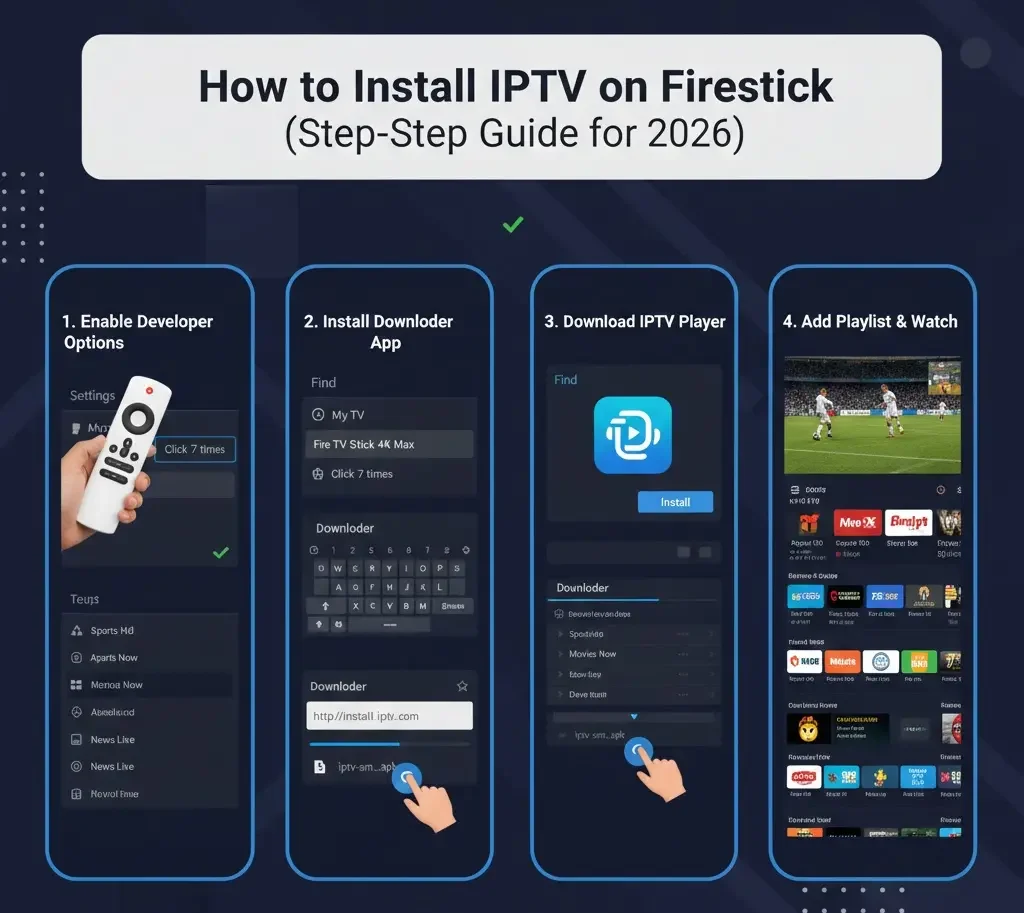
Before installing any IPTV player, your Firestick must allow installations from external sources. By default, Firestick blocks apps that are not downloaded from its official store. Changing a simple setting will allow the installation of IPTV player apps.
Follow these instructions:
Navigate to the Settings menu.
Select My Fire TV.
Open Developer Options.
Inside this section, enable the following options:
- ADB Debugging
- Apps from Unknown Sources or Install Unknown Apps
If the Developer Options menu does not appear, you may need to unlock it:
- Go to Settings
- Select My Fire TV
- Choose About
- Select Fire TV Stick
- Press the select button on your remote seven times
After enabling these settings, the Firestick will allow installation of IPTV applications through third-party tools.
Installing the Downloader Application
The most commonly used tool for installing IPTV apps on Firestick is the Downloader application. It allows you to download APK files directly from the internet and install them on your device.
To install Downloader:
- Return to the Firestick Home Screen.
- Select the Search icon.
- Type Downloader.
- Choose the Downloader app from the list of search results.
- Click Download or Get.
Once the installation finishes, open the Downloader app and allow any permissions it requests. These permissions allow the app to download files needed for installation.
Granting Downloader Installation Permission
New Firestick software versions require specific permission for apps that install other apps.
To enable this:
- Go back to Settings.
- Select My Fire TV.
- Choose Developer Options.
- Click Install Unknown Apps.
- Find Downloader in the list.
- Turn the setting ON.
After completing this step, Downloader will be able to install IPTV player applications.
Downloading an IPTV Player App
IPTV services require a compatible player application where you enter login credentials or a playlist link. Several IPTV players work well with Firestick.
Using Downloader to install an IPTV player:
- Open the Downloader app.
- In the URL field, enter the download link provided for the IPTV player.
- Select Go.
- Wait for the APK file to download.
- When the installation screen appears, click Install.
After installation is complete, select Done rather than opening the app immediately. You can delete the APK file afterward to free storage space.
Common IPTV player apps used on Firestick include:
- IPTV Smarters
- TiviMate
- XCIPTV
- Perfect Player
The best option is usually the player recommended by your IPTV provider.
Opening the Installed IPTV Player
Once the installation is complete, you can access the IPTV player through the apps section.
Follow these steps:
- Go to the Firestick Home Screen.
- Select Your Apps and Channels.
- Scroll until you locate the IPTV player you installed.
- Launch the application.
When opening the app for the first time, it may request access to device storage or network permissions. Approve these requests so the app can load playlists and streaming data correctly.
Adding IPTV Login Credentials
Your IPTV provider typically supplies one of three login methods. The IPTV player will prompt you to choose how you want to connect.
Xtream Codes Login
This is the most common login method. You will enter:
- Username
- Password
- Server URL
After entering the information, select Login or Add User.
M3U Playlist URL
Some IPTV services provide a playlist link instead of account credentials. In this case:
- Select Load Playlist.
- Paste the M3U URL.
- Confirm and load the playlist.
Portal URL
Certain IPTV apps use a portal connection. You simply enter the portal link provided by the IPTV service.
Once the information is entered correctly, the IPTV app will begin loading channels and categories.
Loading Channels and Content
After logging in, the IPTV player will automatically download channel lists and organize them into categories such as:
- Live TV
- Movies
- Series
- Sports
- International channels
Depending on the IPTV service, this process may take a few minutes. Once completed, you can begin browsing channels and streaming content.
Organizing Your IPTV Interface
Most IPTV players allow customization. Taking a few minutes to organize your interface improves navigation and overall viewing experience.
Useful customization options include:
- Creating a list of favorite channels
- Rearranging channel categories
- Hiding unused categories
- Enabling or disabling the electronic program guide (EPG)
- Adjusting playback settings
These adjustments help make the IPTV interface cleaner and easier to navigate.
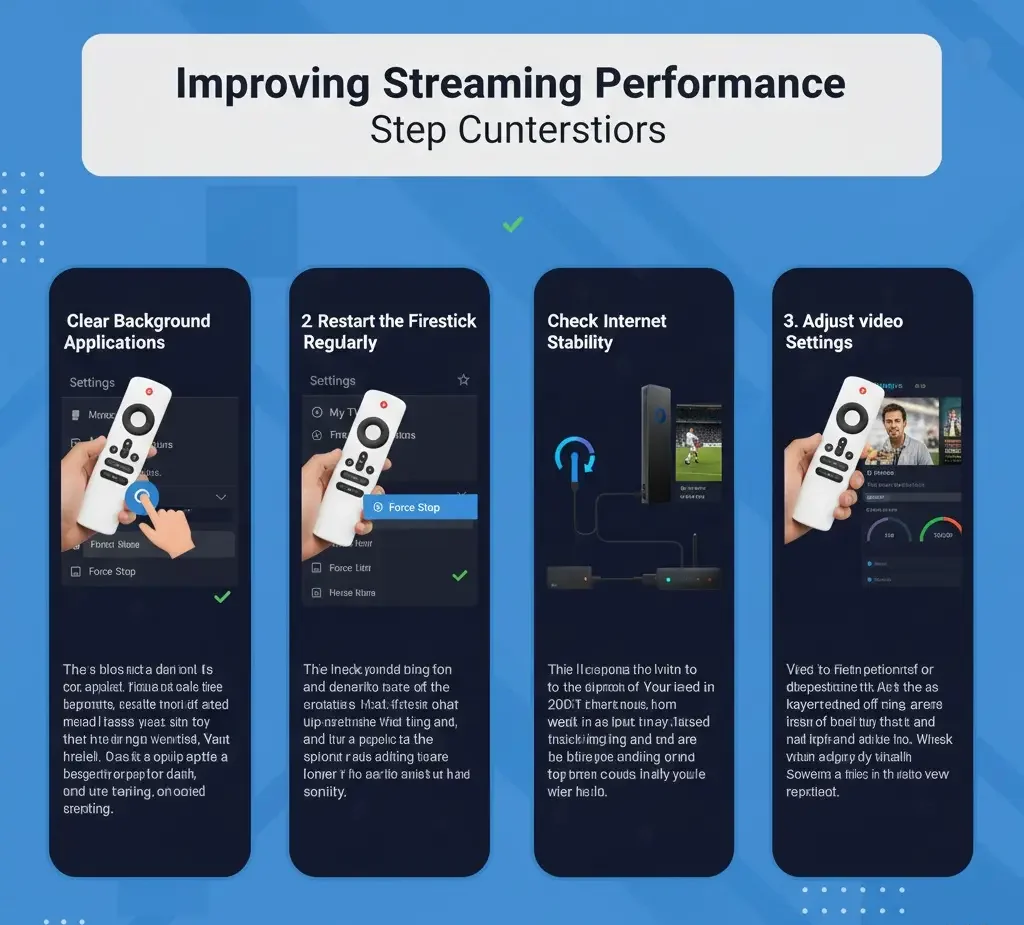
Improving Streaming Performance
While Firestick devices are powerful for their size, certain adjustments can help maintain smooth playback.
Clear Background Applications
Running too many apps in the background can slow down your Firestick. Closing unused applications improves memory performance.
Restart the Firestick Regularly
Restarting clears temporary memory and refreshes the system.
Check Internet Stability
Adjust Video Settings
Many IPTV players allow you to adjust video playback settings. Reducing video resolution can help prevent buffering on slower internet connections.
Keeping IPTV Applications Updated
IPTV player developers frequently release updates that improve compatibility and fix performance issues. Updating your IPTV app ensures better stability and new features.
To update the app:
- Open Downloader again.
- Enter the updated download link.
- Install the newer version.
Installing the update over the existing app usually keeps your login information and playlists intact.
Managing Apps on Firestick
For convenience, you can move your IPTV player to the front of your app list.
Steps to do this:
- Open Your Apps and Channels.
- Highlight the IPTV app.
- Press the Menu button on your Firestick remote.
- Select Move to Front.
This allows quick access to your IPTV player directly from the home screen.
Final Thoughts
Installing IPTV on Firestick in 2026 remains a straightforward process when you follow the correct steps. The key parts of the installation involve enabling developer settings, installing the Downloader app, downloading an IPTV player, and entering your IPTV login credentials.
Once the setup is complete, the Firestick becomes a powerful streaming device capable of organizing channels, managing playlists, and delivering a convenient viewing experience directly on your television. By maintaining updated apps, managing device storage, and optimizing playback settings, users can enjoy smooth and reliable IPTV streaming on their Firestick.
About the Author